Building a dashboard card for my Dreame D10S
I built my own Home Assistant card for my Dreame D10S robot vacuum, with the map, room cleaning, a map editor and every setting in one place. Here's how it works and what tripped me up.
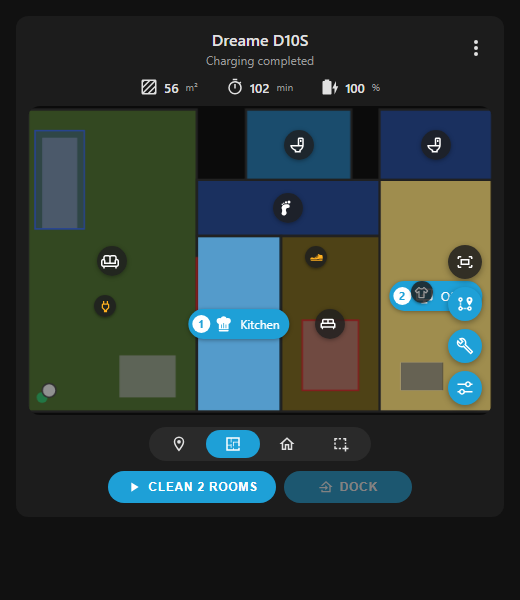
I wanted to control my Dreame D10S from my Home Assistant dashboard the way I do in the Dreame app: tap a room, press clean, done. So I built my own dashboard card for it, and it’s free and open source: dreame-d10s-card on GitHub.
The screenshot above shows two rooms selected for cleaning, numbered in the order they’ll be cleaned. It’s from the card’s demo page, which runs it against a mocked Home Assistant.
Why I built it
My D10S runs through the excellent Dreame Vacuum integration by Tasshack, which exposes almost everything the robot can do to Home Assistant. What I was missing was a card that made all of that easy to use from a dashboard.
The integration has its own official Dreame Vacuum Card, and it looks great. It’s a separate product, though, and unlocking it needs a key from its author. Rather than go that route, I built my own card from scratch and tuned it for the D10S. I built it with Claude Code, testing each feature against a mocked Home Assistant before trying it on the real robot.
What it does
Cleaning
- A live map you can pinch or scroll to zoom, and drag to pan
- Four modes: whole home, room, zone and spot. Tap rooms in the order you want them cleaned, drag out up to five zones, or drop up to five spots
- Clean, Pause, Resume, Stop and Dock buttons that change with what the robot is doing
- Alerts for errors, the robot going offline, low battery, a missing water tank or a worn filter
Map editor
- Rename rooms, set their type and icon, and give each room its own suction, water and number of passes
- Split a room by drawing a line through it, or merge two neighbouring rooms
- Draw no-go zones, no-mop zones and virtual walls, starting from the ones already saved on the robot
- Set the cleaning order by tapping rooms in sequence
Looking after the robot
- Brush, filter, sensor and mop pad life, with reset buttons
- Cleaning history, with each past clean’s map
- Map management: switch floors, rename, back up, or restore an earlier version of a map
- Every setting the integration exposes, in one searchable list, including do-not-disturb and volume
On a tablet or wall display the card switches to a panel layout, with the map on the left and settings in a side column. It also follows your Home Assistant theme, including glass themes like Frosted Glass.
It only shows what the D10S actually supports. The D10S has no camera, for example, so there are no obstacle photos or furniture options cluttering the screen.
How it works
The card is a single JavaScript file with no build step and no dependencies. Everything goes through the integration’s own entities and services, so it never talks to the robot directly.
Turning taps into cleaning commands. The integration publishes a map image along with three calibration points that tie image pixels to the robot’s coordinates, in millimetres. From those three points the card works out the conversion both ways. A zone you drag on screen becomes a rectangle in millimetres, which goes to the integration’s zone-cleaning service:
action: dreame_vacuum.vacuum_clean_zonetarget: entity_id: vacuum.dreame_d10sdata: zone: [-4558, 911, -1953, 3111] repeats: 1Room cleaning, spot cleaning and the map editor all work the same way.
Highlighting rooms. The map image only comes with a bounding box for each room, and those overlap their neighbours. To light up just the room you tapped, the card samples the map image and picks out the pixels matching that room’s colour. It’s an approximation, but it looks right almost all of the time.
The floor plan view. For an exact result, the card can draw the map itself. The integration has an optional map-data camera that serves the raw map as JSON: each room as run-length-encoded rows of pixels, plus walls, the robot’s path, the robot and the dock. The card renders that onto a canvas, so highlights follow each room’s true shape and editor changes show up straight away.
Showing only what the D10S supports. Each section, tool and setting only appears if the matching entity or attribute exists. Nothing is hard-coded per model, so if a firmware update adds a feature, the card picks it up.
What went wrong: updates
I published the card as a HACS custom repository so I could install and update it without copying files around. HACS only needs a public GitHub repo, a GitHub release for each version, and a small hacs.json:
{ "name": "Dreame D10S Card", "filename": "dreame-d10s-card.js", "render_readme": true, "homeassistant": "2024.8.0"}Getting updates to actually reach my dashboard took a few more lessons.
HACS doesn’t notice releases straight away. It checks for new versions every few hours. Checking for updates manually refreshed the version list, but the update entity in Settings → Updates stayed on the old version until I restarted Home Assistant. Restarting, or picking the version with HACS’s Redownload option, gets around that.
A page refresh can still load the old card. Even after HACS installed the new version, a normal refresh kept running the old file from the browser’s cache. I ended up rebooting to get the fix. The card now notices when HACS has installed a newer version than the one running, shows an “Updated to …” notice, and its Refresh button downloads the file fresh before reloading.
Leftover manual installs cause confusion. If you installed the card by hand before switching to HACS, the old copy can keep loading in its place. The card now spots a second copy and tells you which dashboard resource to delete.
Glass themes need transparent cards. I use the Frosted Glass theme, which makes cards transparent and blurs what’s behind them. My first version painted its own background, which hid the glass effect. Its pop-up menus picked up the transparency too and were hard to read. The card now leaves its background to the theme, uses the theme’s frosted surface for sheets and its solid menu colour for menus, and takes button colours from the theme.
Try it
You’ll need Home Assistant 2024.8 or newer, the Dreame Vacuum integration set up with your D10S, and HACS.
- In HACS, open the ⋮ menu and choose Custom repositories.
- Add
https://github.com/EthanetXYZ/dreame-d10s-cardwith type Dashboard. - Download Dreame D10S Card, then refresh your browser.
- Add it to a dashboard from the card picker, or with YAML:
type: custom:dreame-d10s-cardentity: vacuum.dreame_d10sFor the floor plan view, enable your vacuum’s Map Data camera entity, which the integration turns off by default. Full options and troubleshooting are in the README.
It’s built for the D10S. Other Dreame robots supported by the integration may work, but I haven’t tried them. If you find a bug or have an idea, please open an issue.
Big thanks to Tasshack, whose integration does the hard work of talking to the robot. This card is an independent project, not affiliated with Dreame or the official Dreame Vacuum Card.